Happy New Year! Welcome to the January 2026 release notes. As we begin another exciting year, we’d like to thank you for being a valued member of our community. Our team remains focused on delivering continuous improvements, from subtle refinements to major enhancements. This month, we’re excited to introduce several new updates in our last-mile logistics software. Here are the highlights of our latest features.
1. WooDelivery is now Wodely
We’re entering a new chapter, with a fresh new name. WooDelivery is now Wodely. This is purely a name change, everything else you know and trust remains exactly the same.
One key advantage of this name change is that it better reflects who we are. As our platform continues to grow globally, Wodely better reflects our vision for a modern, scalable, and innovative last-mile logistics software. The name WooDelivery has sometimes caused confusion for recipients and drivers who mistook us for a courier or delivery company.
In reality, we are a software platform, and our customers are the courier, delivery, and logistics businesses, we should support their brand, not overshadow it. The new name Wodely is concise, modern, and better aligned with our identity as a last-mile logistics software provider, while giving our customers clearer brand independence and professionalism. Our commitment to continually improving the platform and delivering best-in-class last-mile logistics software remains stronger than ever.
Additionally, we’ve prepared a new range of video tutorials to help you understand how to use the software. View the video tutorials
2. Package-Level Barcode Scanning
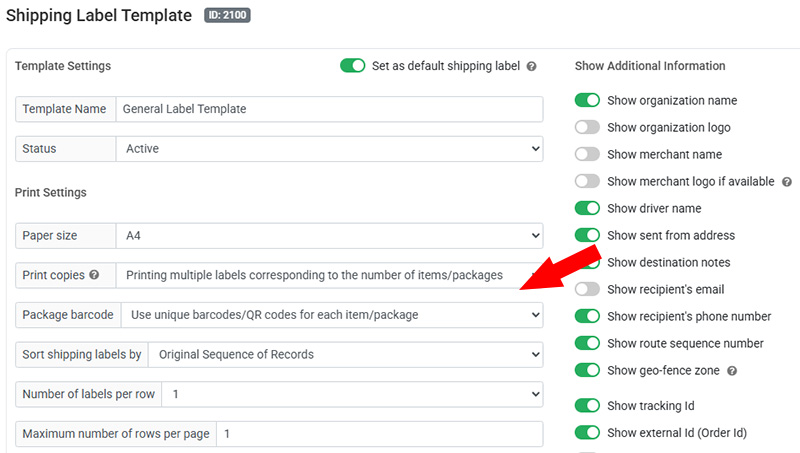
We’ve introduced package-level barcode auto-generation and scanning to give you greater visibility and control over every item in a delivery. Our shipping label module can now generate and print a unique barcode or QR code for each individual item or package within a delivery task. For example, if a single delivery contains 10 packages, the system will automatically print 10 labels, each with its own distinct barcode or QR code, making it easy for dispatchers and drivers to track every package accurately from dispatch to delivery.
This enhancement enables drivers to scan all assigned package barcodes before marking a task as Loaded or Completed, helping prevent missing items before leaving the depot or completing a delivery. To use this feature, set the label print option to “Printing multiple labels corresponding to the number of items/packages” and configure the package barcode to “Use unique barcodes/QR codes for each item/package”.
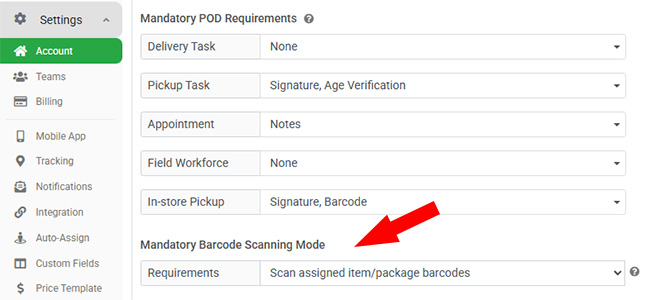
To enforce scanning, go to Settings → Account page and set the mandatory barcode scanning mode to “Scan assigned item/package barcodes”. This ensures every package is scanned and accounted when completing a task on the driver app.
3. Automatic Re-dispatch for Unassigned Tasks
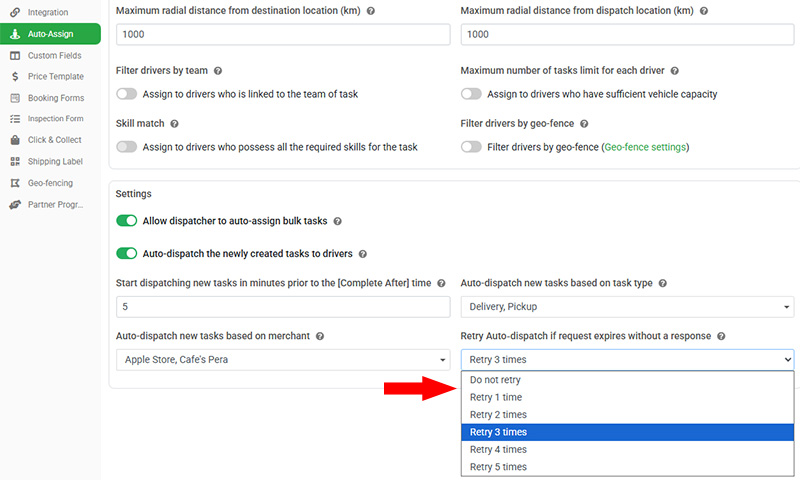
We’ve enhanced the automated task assignment module with a new Auto-dispatch Retry feature to help ensure new tasks are assigned without delays. When auto-dispatch is unable to find an available driver that meets your criteria, or when no team member accepts the task within the initial expiry period, the system will now automatically retry the auto-dispatch process. After each expiry, the task can be re-sent to available drivers, giving your team multiple opportunities to accept the job until a driver becomes available or accepts the assignment.
This option allows you to configure auto-dispatch retries for new task requests that expire without a response, improving assignment success rates during busy periods or when driver availability changes. Once enabled, the system will resend new task notifications to all eligible drivers after the original request expires, reducing the need for manual intervention. As an alternative approach, you can also consider using the Task Self-assignment module, which allows drivers to view and claim new tasks on their own at any time.
4. Enhanced Linked Task Assignment
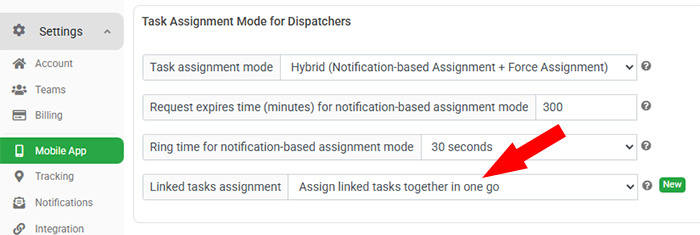
Linked tasks are pickup and delivery tasks that share the same job Id. We’ve introduced a new option for linked task assignment to give you greater control over how pickup and delivery tasks from the same job are dispatched. By default, these tasks continue to behave independently, meaning each task must be assigned separately and can be allocated to different drivers based on your operational needs.
For teams that prefer a streamlined workflow, you can now enable the option to assign linked tasks together. When this mode is active, assigning one task from a job automatically triggers the system to check for any other unassigned linked pickup or delivery tasks. If additional linked tasks are found, they are assigned to the same driver at the same time automatically. This simplifies task assignment, reduces manual steps for dispatchers, and ensures consistency by keeping related tasks with a single driver. As a result, it helps prevent split assignments, minimizes coordination errors, and improves overall operational efficiency, especially for multi-stop or pickup-and-delivery jobs.
5. Map Page Improvements
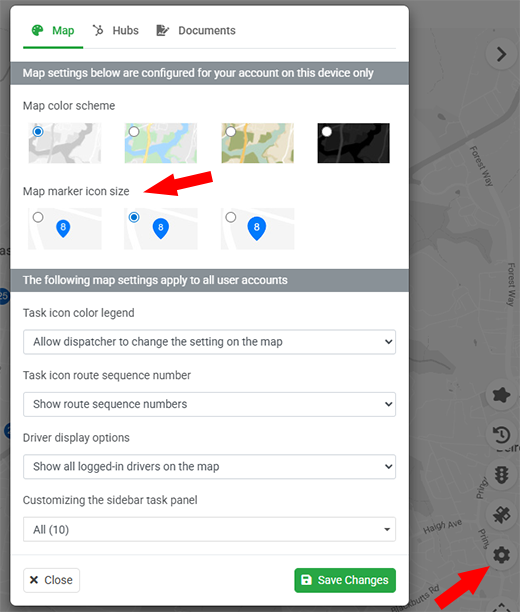
We’ve introduced several enhancements to the Map page to improve usability and visibility, especially for teams managing a large number of tasks and drivers. For example, you can now customise the marker size displayed on the map, allowing you to switch to smaller icons when many tasks are shown at once. This makes the map cleaner, easier to read, and more efficient to use during busy dispatch periods.
In addition, a new toggle option allows you to hide inactive drivers from the team member list. When enabled, the map and sidebar will display only drivers who have been assigned tasks, helping you focus on active fleet members. This enhancement is particularly useful for operations with large fleets, as it reduces visual clutter and ensures the map view remains relevant and easy to manage.