

Welcome to Wodely Dispatcher App! This app allows you to plan, dispatch, and analyze jobs on the go. You can assign tasks to team members, analyze performance, and optimize the utilization of your fleet and drivers.
Login
You can log in to the dispatcher app using your email and password. Users can reset their passwords directly on their mobile devices by tapping the “Forgot Password” button on the login page.
Overview
Upon logging into the Dispatcher App, the main screen presents several tabs:
- Task: Oversee all active tasks within your business or team and assign them to drivers.
- Map: Visualize active tasks and online drivers on a map with real-time locations.
- Chat: Communicate directly with team members and merchants through in-app chat.
- Vehicle: Manage and monitor all aspects of your vehicles.
- Driver: Handle driver management or create new driver accounts.
- Contact: Organize your business contacts and create delivery or pickup tasks for them
- More: Access completed tasks, edit your profile, adjust settings, view dashboards, or explore additional features.
Understand task status:
- Unassigned: The task has not been assigned to any driver and is displayed in grey. All newly created tasks will default to this status.
- Assigned: The task has been allocated to a driver and is displayed in blue.
- In Transit: The driver has started the task and is en route. This status is displayed in orange.
- Completed: The task was successfully completed and is displayed in green.
- Failed: The task could not be completed successfully and is displayed in red.
Manage Tasks
In this article, you will learn how to manage your tasks on the Wodely App.
Task List
- Navigate to the Task tab to view all active tasks.
- To see tasks displayed on a map with their exact locations, switch to the Map tab.
- If no tasks appear in your list, check the filters at the top of the screen.
- To manually refresh the task list, swipe down on the list to fetch the latest data to your mobile device.

Filter Task List/ Change View
- Tap the Filters icon in the top-left corner to access the task filtering options.
- Group your tasks by due date, task status, or driver for better organization.
- Apply filters to narrow down tasks based on due date, driver, merchant, or status.
Create New Task
- Create new tasks directly in the app by adding details such as description, destination, and delivery time window.
- Tap the plus icon at the top of the screen to open a form for creating a new task.
- For more comprehensive task creation, including package details and attachments, log into the Wodely web portal.
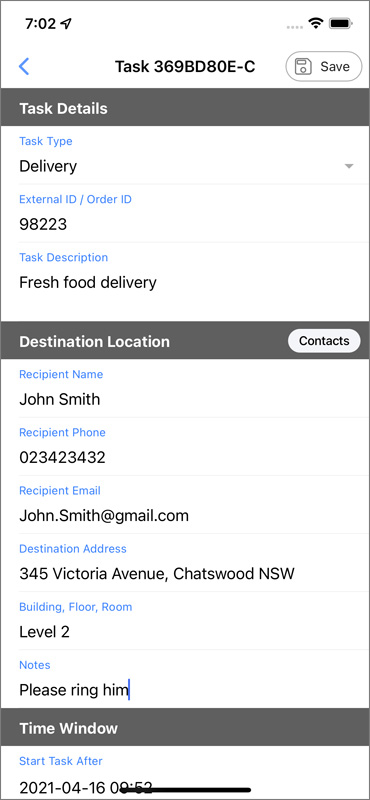
Edit Task
- Tap on a task to view its details.
- To make changes, tap the Edit button at the bottom of the screen.
Note: Some users may not have permission to create or edit tasks within the app. These permissions are managed by the system administrator.

Assign Task to Driver
There are two ways to assign a task to a driver:
- Go to the Task tab and click the User Plus icon on the left-hand side to select a driver for the task.
- Tap on a task to view its details, then click the Assign button at the bottom of the page.

Complete Task
- Access Task Details: Tap on a task to view its details.Choose Completion Option: Tap the More (three dots) button at the bottom of the screen and select Complete Task from the popup menu.Set Task Status: On the task completion screen, choose a status: Successful or Failed. You can also provide proof of delivery:
- Attach Photos:
- Tap PHOTO to open your camera and take a picture.
- Tap UPLOAD to select photos from your device’s gallery.
- Capture Signature: Select SIGNATURE and allow the recipient to sign directly on your screen.
- Scan Barcode: Use the barcode scanner to add verification.
- Save & Submit: Once all required details are added, tap the Save & Complete Task button to send the completed task information to your dispatcher.
Handling Incomplete Tasks
- Failed Task: If you cannot complete the task, select Failed and choose the most appropriate reason from the provided list. Failed tasks will remain on the task list and can be retried later.
- Cancel Task: If the task cannot be completed at all, you have the option to cancel it.

Manage Drivers
You can manage all drivers from the Driver tab. To create a new driver account, follow these steps:
- Tap the Plus icon in the top-right corner of the screen.
- Fill in the required user details and set a temporary password.
- (Optional) Assign the driver to a team.
- Provide the driver’s transportation and capacity details.
- Tap the Save button to create the account. A welcome email with login details will be sent to the new driver automatically.
