
WordPress/WooCommerce is an ecommerce platform that enables you to build a successful online business & website. The Wodely integration with WordPress (through WooCommerce) now helps you not only process orders for delivery on your WordPress account but now allows those orders to be sent instantly to your Wodely account so you can start dispatching, tracking and managing the deliveries to be fulfilled out in the field!
To get started with your WooCommerce webhook integration, follow our simple 5 minutes WooCommerce Quick Start Guide below.
Please note that the WooCommerce webhook integration does not require the Wodely‑WooCommerce plugin. To avoid conflicts, make sure to uninstall the plugin before setting up the WooCommerce webhook.
1. Generate your Wodely API Key
- Navigate to the Settings/Integrations page within Wodely Admin Dashboard
- Create an API key and copy it for use later
- Note: If you work with multiple merchants/restaurants under the same Wodely account, you can attach the API key to a merchant. All orders created from this API key will be assigned to the attached merchant automatically

2. Set up an [Order Created] Webhook on WooCommerce
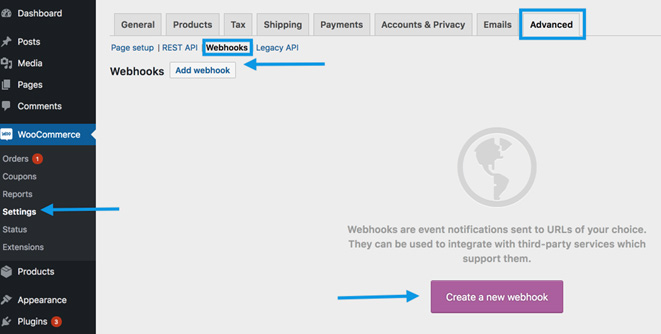
- Click on “WooCommerce” / “Settings“/ “Advanced“/ “Webhooks“
- Select Create a new webhook (first incident) or Add webhook. The Webhook Data box appears.
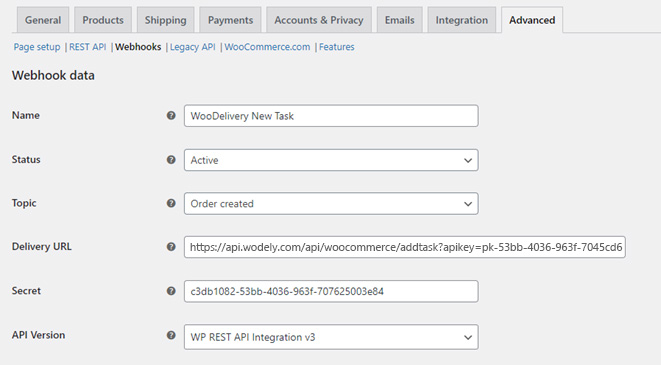
Enter the webhook details below:
- Name: Wodely New Task
- Status: Active
- Topic: Order Created
- Delivery URL: https://api.wodely.com/api/woocommerce/addtask?apikey=[YOUR_API_KEY]
- Secret: [YOUR_API_KEY]
- API Version: WP REST API Integration v3
Note: Please replace [YOUR_API_Key] with the real API key copied from your Wodely admin dashboard.
3. Auto‑Mark WooCommerce Orders as Completed (Optional)
This step is optional. Please proceed only if you want WooCommerce orders to be automatically marked as Completed status when the corresponding Wodely tasks are successfully completed by drivers. To set this up, you’ll first need to enable the REST API on your WooCommerce store:
3.1 Enable WooCommerce REST API
- Review the guidelines for generating WooCommerce REST API keys:
https://docs.woocommerce.com/document/woocommerce-rest-api/ - Ensure your API keys have both read and write permissions.
- Copy the Consumer Key and Consumer Secret.
3.2 Set Up Webhook on Wodely
- Go to Settings → Notifications page on your Wodely admin portal.
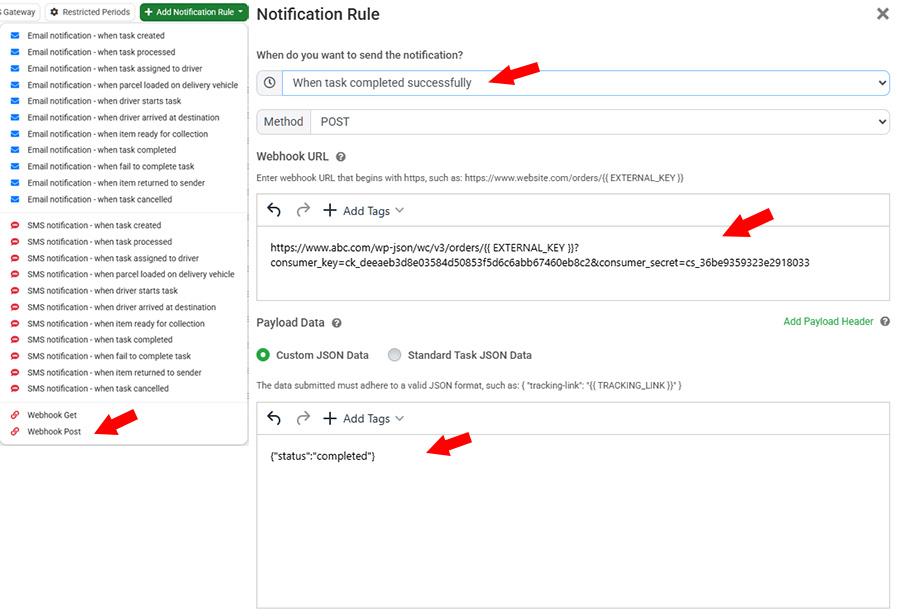
- Click Add Notification Rule and select Webhook POST.
- Choose When task completed successfully.
- Set the HTTP method to POST.
- Generate your webhook URL
For example:

your website domain is https://www.abc.com
your consumer_key is ck_deeaeb3d8e03584d50853f5d6c6abb67460eb8c2
your consumer_secret is cs_36be9359323e2918033

Then you can link them in the following format:
https://www.abc.com/wp-json/wc/v3/orders/{{ EXTERNAL_KEY }}?consumer_key=ck_deeaeb3d8e03584d50853f5d6c6abb67460eb8c2&consumer_secret=cs_36be9359323e2918033
- Copy and paste your URL into your Webhook URL.
- Set the payload JSON data to {“status”:”completed”}
- Click on Save button to create webhook
All Done!
Please note that the WooCommerce webhook integration does not require the Wodely‑WooCommerce plugin. To avoid conflicts, make sure to uninstall the plugin before setting up the WooCommerce webhook.