Welcome to the June 2026 release notes. We continually enhance the capabilities of Wodely platform through monthly feature updates and service releases. Each month, we introduce new features, improvements, and bug fixes to ensure our platform remains secure, modern, and efficient for your operations. In this release, you’ll find the latest enhancements designed to improve productivity, streamline workflows, and deliver an even better experience for your team.
1. Reverse Route Sequence
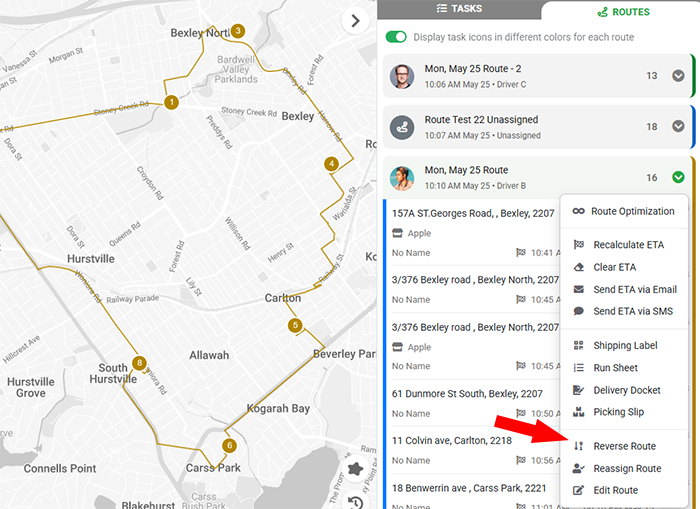
We’re excited to introduce the new Reverse Route feature, giving dispatchers a quick and easy way to reverse the sequence of all stops on a route. With a single click, the system will reverse the order of the route stops while keeping the original start and end locations unchanged. This provides greater flexibility when managing routes and allows dispatchers to quickly adjust the driving sequence without manually reordering each stop.
While the route optimization engine generates the most efficient route based on the available data, there are situations where the reverse sequence may be preferred. This is especially useful for circuit routes, where the start and end locations are the same, or when operational requirements make it more practical for drivers to complete stops in the opposite order. To use this feature, simply open the route menu, hover over the available actions, and select Reverse Route. The system will automatically update the stop sequence, making route adjustments faster and more convenient.
2. Mandatory Photo Proof for Failed Tasks
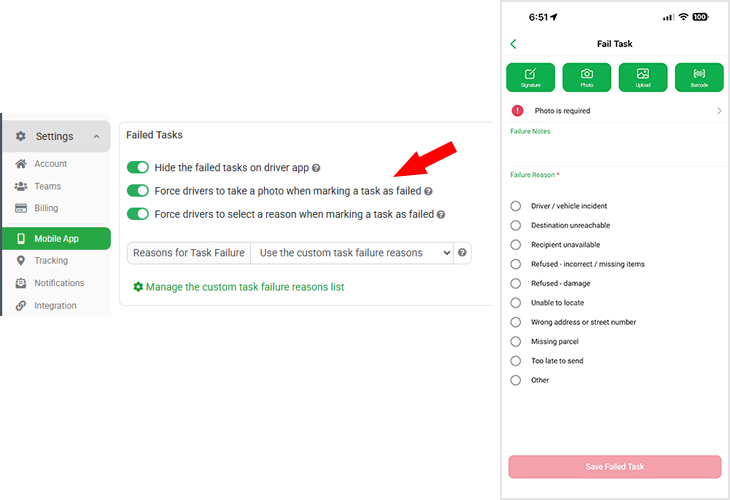
We have introduced a new option that allows administrators to require photo proof when a task is marked as failed in the driver app. Previously, mandatory photo capture was only available for completed tasks as part of the Proof of Delivery process. While this helped verify successful deliveries, there was no way to enforce photo evidence when a delivery attempt was unsuccessful.
With this update, administrators can enable a global setting under Settings – Mobile App page to require drivers to take or upload one or more photos before they can mark a task as failed. This provides additional accountability and supporting evidence for failed delivery attempts, helping businesses reduce disputes, improve service visibility, and maintain accurate records of delivery outcomes. Once enabled, the mandatory photo requirement will apply to all failed tasks across the driver app.
3. Customer Tracking Page: Live Traffic and Satellite View
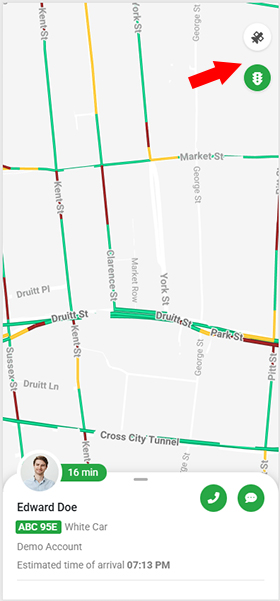
We have enhanced the Customer Tracking Page with new map viewing options, allowing customers and recipients to enable Live Traffic and Satellite View while tracking their deliveries. These new features provide greater visibility into the driver’s journey and help customers better understand delivery progress in real time.
When Live Traffic is enabled, customers can view current traffic conditions on the map alongside the driver’s live location, helping them understand potential delays or congestion along the route. The new Satellite View option provides a detailed aerial map, making it easier to identify landmarks, buildings, and the driver’s exact location. Together, these enhancements deliver a richer tracking experience and give customers more confidence and visibility throughout the delivery process.
4. Driver App Option to Disable Task History
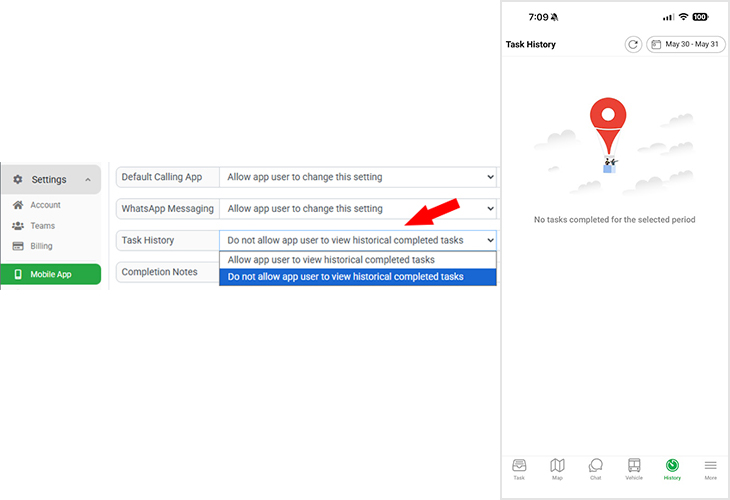
We have introduced a new setting that allows administrators to disable Task History access in the driver app. Previously, drivers could view and search their completed tasks from the past 12 months directly within the app. While this feature is useful for reviewing previous deliveries, some businesses prefer to limit access to historical customer and delivery information for privacy and security reasons.
With this update, administrators can now easily enable or disable task history visibility through the system settings. When disabled, drivers will no longer be able to browse or search previously completed tasks in the driver app. This provides greater control over customer data access and helps organizations meet internal privacy policies while ensuring drivers only have access to the information required for their current work.
5. New Mandatory Barcode Scanning Mode
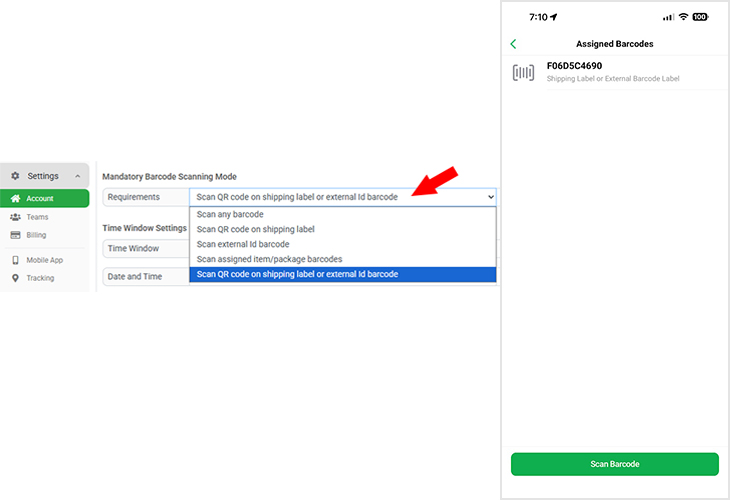
We have introduced a new Mandatory Barcode Scanning option that provides greater flexibility when verifying deliveries in the driver app. Administrators can already require drivers to scan a barcode before completing a task, with support for either the QR code generated on shipping labels or a custom barcode stored in the External ID field. However, these options previously had to be configured separately, meaning only one barcode type could be configured and accepted at a time.
With this update, you can now enable the new “Scan QR Code on Shipping Label or External ID Barcode” mode. When this option is selected, drivers can complete the barcode verification step by scanning either the shipping label generated by the system or a custom barcode produced by a third-party system. This enhancement provides greater flexibility for businesses that use multiple labeling systems while still ensuring barcode verification is completed before a task can be marked as delivered.