
If you encounter an error with your Google Maps API key when using the Map service or the address auto‑complete service, this guide outlines the steps to help you resolve the issue. Most API key issues must be resolved directly in your Google Cloud account. There are two common causes: A. Website Restrictions; B. Billing Not Enabled;
1. Verify Your Google Maps API Key
Start by confirming that your Google Maps API key is correct. You can find your API key at the bottom of the Settings → Account page in your admin dashboard. Ensure the key is still valid and identify the Google account where the key was originally created.
2. Log In to Your Google Cloud Account
- Log in to your Google Cloud account and search for “Google Maps” using the search bar at the top. Select Google Maps Platform from the results.

- In the left-hand menu, click Keys & Credentials to open the page where you can manage your API keys.

- Select the API key you previously created. Under Website Restrictions, please make sure our app domain (app.wodely.com) is in your allowed website list.
If you cannot see it, click Add, then add: https://app.wodely.com
Then, click Save button at the bottom of the page to save your changes.
Note: Do not add a trailing slash to the domain URL, as this will cause domain validation to fail.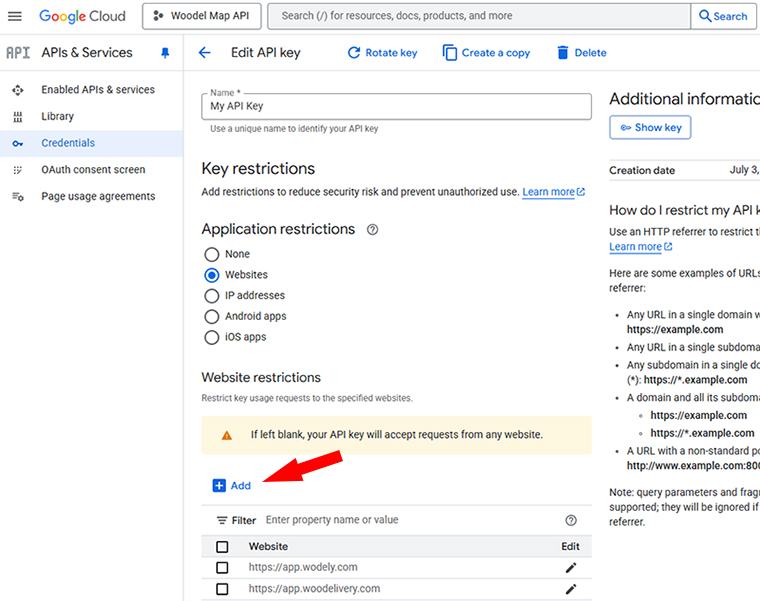
If you use White-labelled URLs, please add your custom domain (for example, app.your-domain-name.com) to the allowed website list.
3. Enable Billing and add valid Payment Method to Your Google Cloud account
To use your Google Maps API key long-term, you must enable billing and add a valid payment method to your Google Cloud account. The map API key may work temporarily during your Google Maps account’s free trial period, but it will be deactivated automatically when the free trial period expires. Therefore, enabling billing and adding payment details on your Google Cloud account are essential.
If you still experience issues after checking the website restrictions and billing settings in your Google Cloud account, please contact our support team for further assistance.